The Global node acts as the central hub or "brain" for your entire website. Rather than managing every detail page by page, the Global node allows you to control site-wide settings and create content that appears in multiple places simultaneously.
Think of it as a master control center within your "digital filing cabinet" (the site tree) where you manage everything from your logo and social media links to your global footer.
Step-by-Step: Managing Your Global Settings
-
Locate the Global Node: Log in to your Umbraco Backoffice and navigate to the Content section. Look for the node labeled Global or Global Settings; it is usually located at the same level as your "Home" page.
-
Choose a Category: Click the caret (chevron > ) next to the Global node to see different management areas. You will typically see options for:
-
Settings: For site-wide configurations like your logo or SEO defaults.
-
Social Media: A dedicated tab for your Facebook, Instagram, and other social links.
-
Reusable Components: The home for sections you want to "fetch" and reuse on multiple pages.
-
Edit Content: Select the specific item you want to change. A slide-out panel (Infinite Editing) will appear from the right, allowing you to make your updates without leaving your current view.
-
Confirm and Launch: Once your changes are made in the panel, click Confirm or Submit at the bottom of that window. Finally, click the main green Save and Publish button at the bottom of the screen to push those changes live across your entire site.
Key Features of the Global Node
-
Reusable Components & Pods: This is the primary home for content you want to create once and use everywhere. Instead of building a "Contact Us" banner on every page, you build it here and simply drop it onto any page using the Visual Editor.
-
Centralized Navigation: Your Global Footer and Header menus are managed here, ensuring a consistent experience for every visitor.
-
Social Media Hub: Manage your social links in one spot so they update automatically in both your header and footer.
-
Instant Updates: Any change you save in the Global node is updated instantly across the whole site.
What does Global look like?
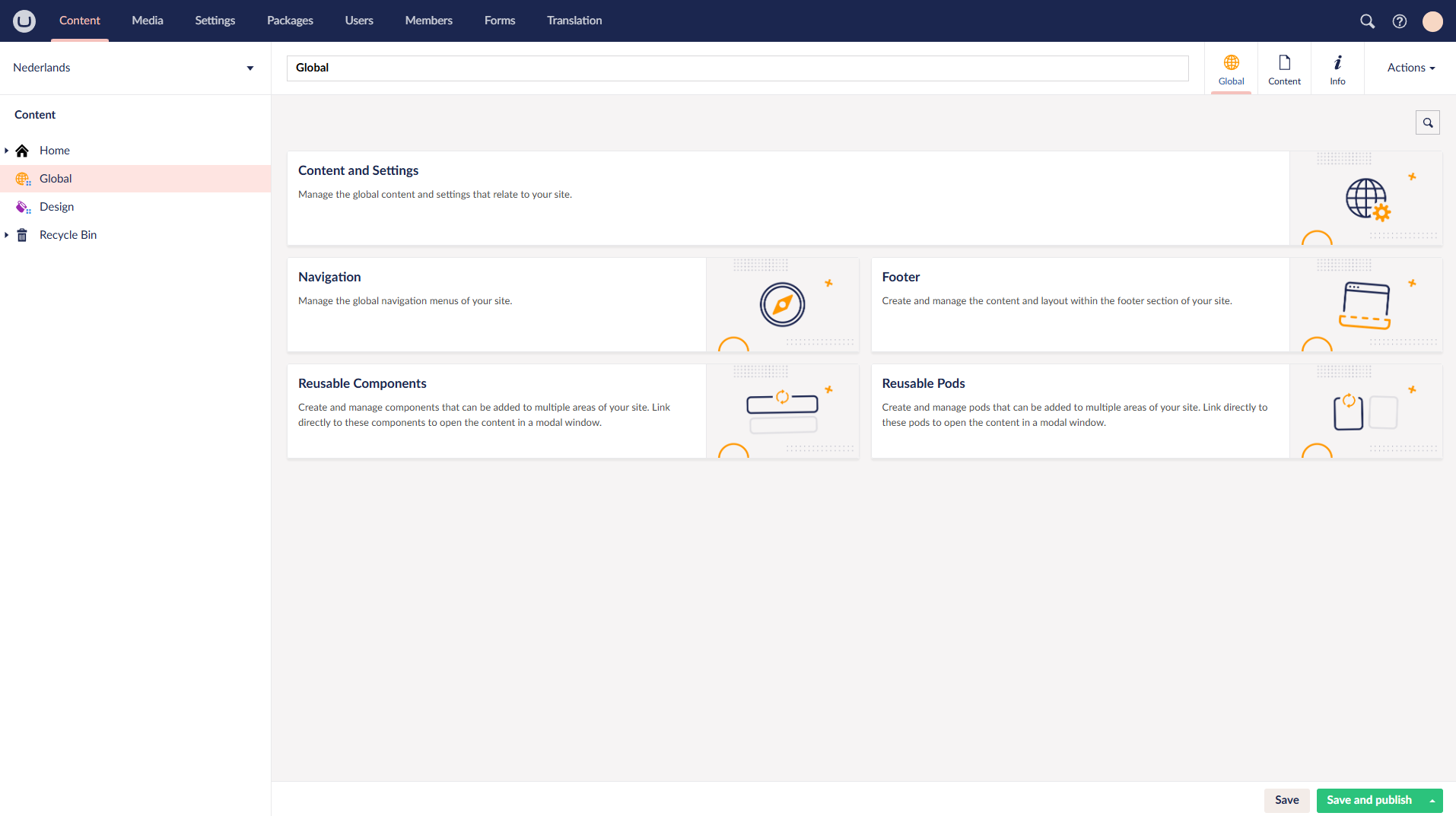
Note: This image shows you where to find the 'Global' node in Umbraco 17+.
Pro-Tips for Beginners
-
Efficiency First: If you find yourself creating the same content block more than twice, save it as a Reusable Component in the Global node.
-
Global vs. Local: Remember that changes here affect the whole site. If you only want a change on one specific page, use the Visual Designer on that page to "override" these global settings.
-
Safe Links: When adding social media links, use the built-in Link Picker to avoid broken URLs; it handles the "https://" prefix for you automatically.
Relevant Links & Videos
-
Watch: uSkinned Getting Started Video Series: This YouTube series provides a click-by-click walkthrough of managing your site structure and Global settings.
-
uSkinned Help Guide: How to add or edit Reusable Components.
Where Next?
You've already explored "Global" and understand its importance; the next step in mastering your site's aesthetic is to visit Global Designs within the Visual Designer.
This is where your structural choices meet your creative vision, allowing you to fine-tune the look and feel of your entire site in one cohesive environment.